
In this post we’re going to develop custom agent tools using python, then create a custom MCP server to host the tools, publish the MCP server to the cloud, and then test the solution by creating an Azure AI Foundry Agent that calls our MCP tools.
What we cover in this post
- How the MCP server is designed and how it hosts custom tools
- The HTTP endpoints behind the server:
- A typical MCP request/response flow between an agent and the server
- How the MCP tools encapsulate all the GraphRAG / Cosmos DB Gremlin logic
- A code walk-through (in the embedded video)
- Creating an Azure AI Foundry agent that calls the MCP tools (in the embedded video)
MCP Server Architecture
The tools we’ll develop will be hosted by the MCP server, allowing agents to query the underlying GraphRAG data source we’ve already built using Azure Cosmos DB in Gremlin Graph Storage .
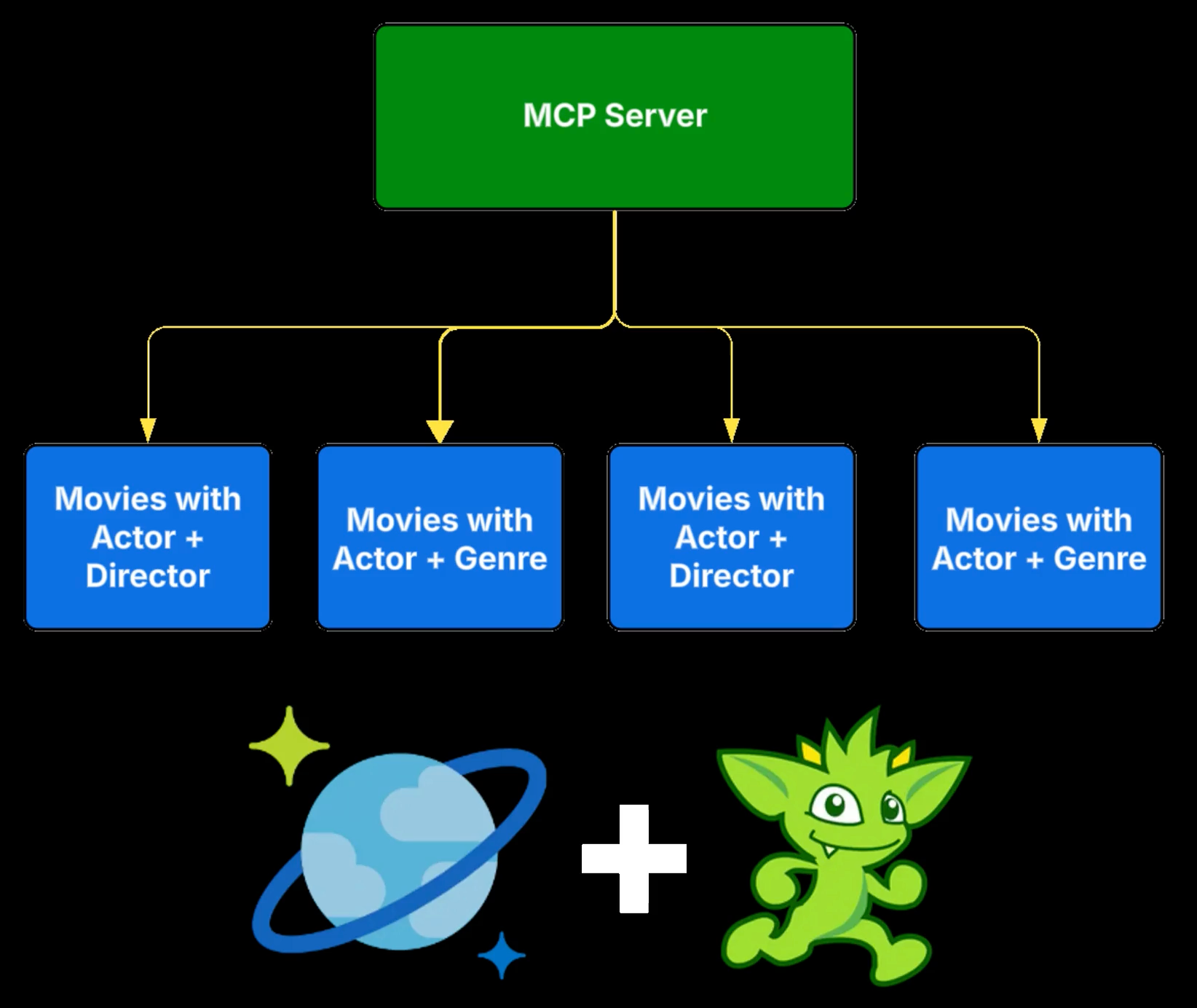
Since all the functionality of the GraphRAG queries are encapsulated in the MCP tool, the Agent doesn’t need to know where the movie Graph data is, or how to query Cosmos DB for it.
MCP Background
OK, let’s back up a step.
If you’ve landed on this video you probably know what MCP is, but for those that don’t here’s a 15 second explanation:
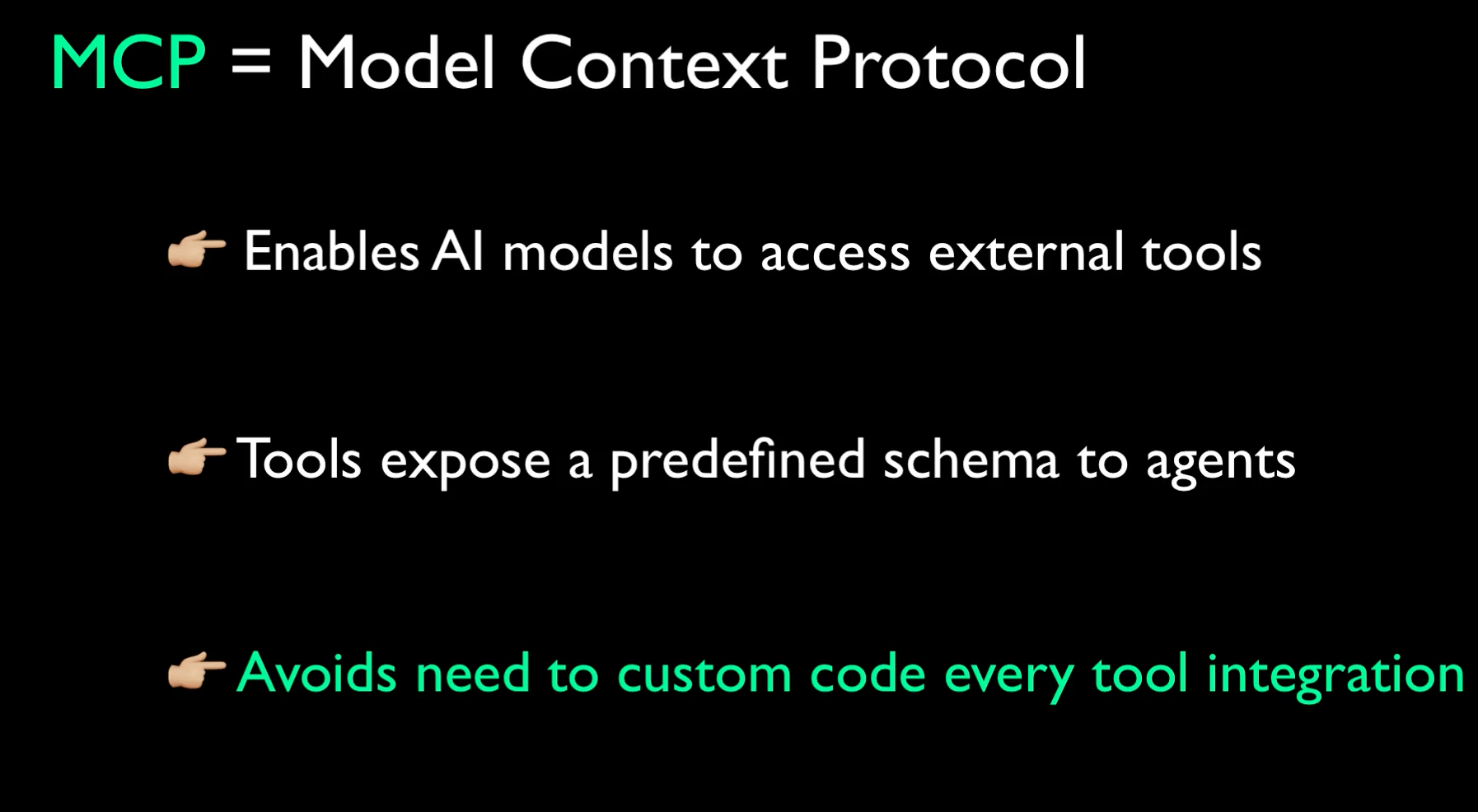
- Model Context Protocol (or MCP) is an open standard that lets AI models dynamically access external tools, data sources, and services in a structured, secure way.
- It provides a unified schema for defining tools, resources, and contexts so LLMs can reason with live information instead of static prompts.
- MCP is similar to building a REST API endpoint in that it exposes RAG data to agents; it’s different in that MCP is a standardized protocol, so the consumer of the endpoint can use a predefined interface.
Solution Overview
Ok let’s look at the solution we’re building today.
We’ll deploy the MCP server to the cloud as an Azure Function app. The function app will have several endpoints:
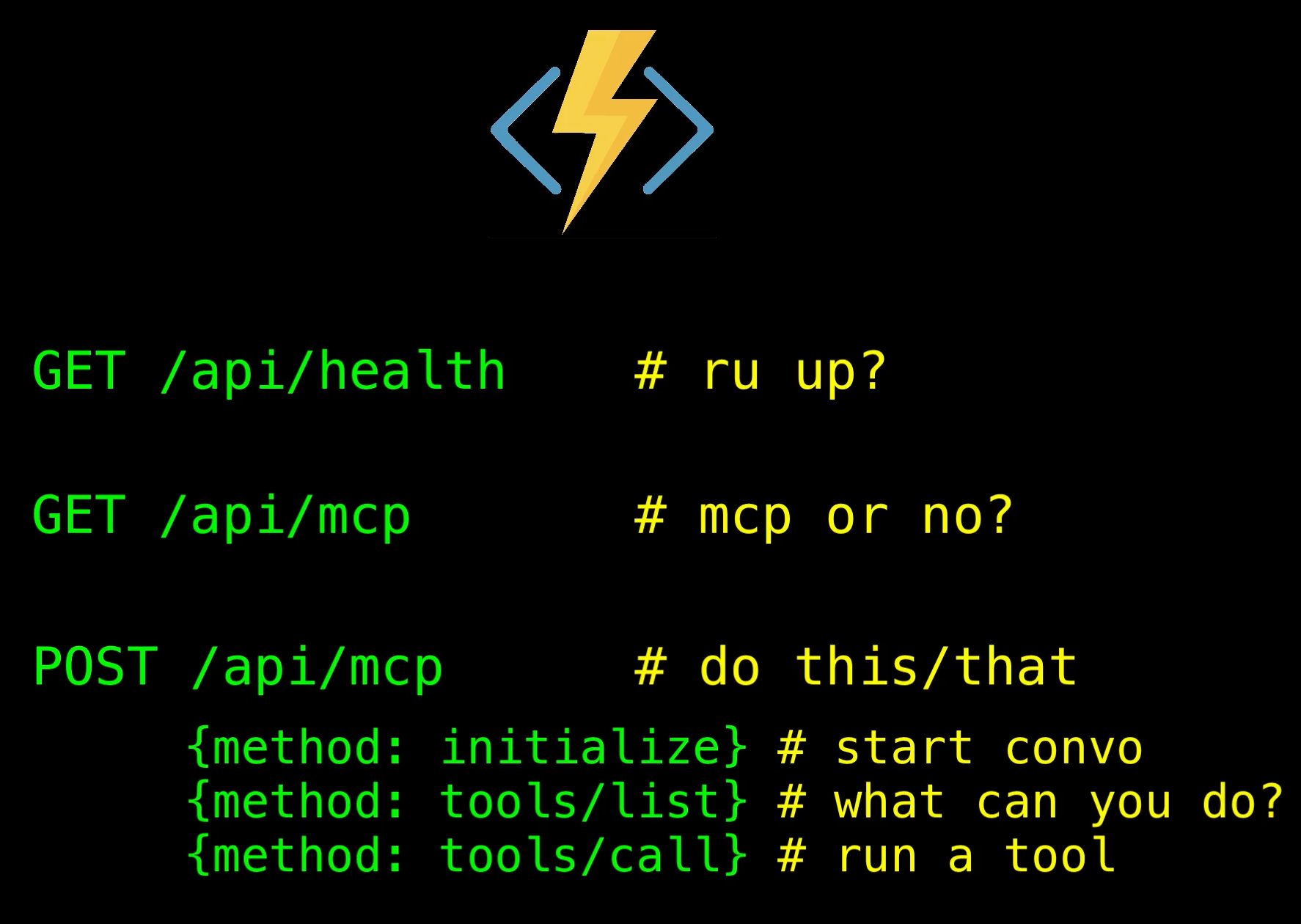
GET /api/health.
This is a simple REST call that checks whether the service is running or not. It's an endpoint that could be used by infrastructure monitoring to ensure the service is running. Agents don’t call this endpoint.
GET /api/mcp.
This is an HTTP SSE discovery endpoint the MCP server uses to let a calling agent know it’s reached an MCP endpoint that has tools it can use.
POST /api/mcp
This endpoint uses the JSON-RPC protocol to provide information about the tools, and ultimately is used to make tool calls.
The POST mcp endpoint supports three commands
- initialize - this is a Client/server handshake to begin a session
- tools/list - Gets a list of tools the agent can call via MCP
- tools/call - Executes a specific MCP tool
A typical MCP flow will look like this:
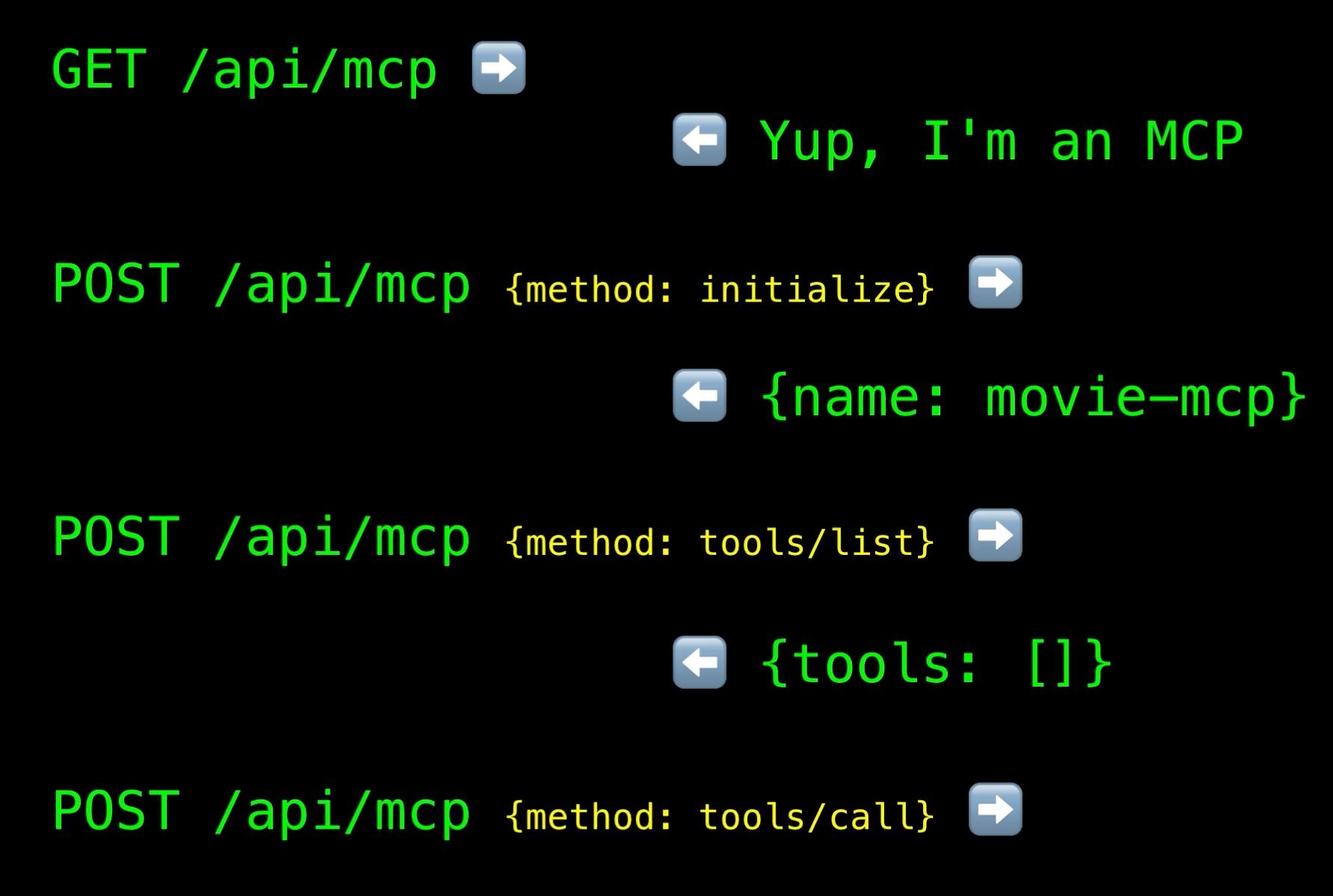
- First the client—typically the agent—calls GET /mcp to confirm the service is an MCP server. The server responds with its capabilities, which include a {"tools": true} property in the response.
- Next the agent calls POST /mcp with {"method": "initialize"}. The server response with some basic server information
- The agent then calls POST /mcp with {"method": "tools/list"}. The server response responds with the list of available tools
- After deciding which tool to use, the Agent calls POST /mcp with {"method": "tools/call", and the parameters as a JSON object "params": {...}}
After processing the request, the MCP server returns a response with tool results
Next, Let’s look at the MCP server code. I’ll go through this talk about some highlights, but as usual the code behind this solution will be available on my Github account so you can dive into the details to get a full understanding of how the solution works.