

In the Power BI workspace, users can access reports either from the azure virtual network or from other networks, but when the semantic models are refreshed, the Fabric workspace can use the private network to access lakehouse data in the restricted workspace.
YouTube Video Walkthrough
This runbook accompanies a video walk-through of the process published to my YouTube Channel:
YouTube Video Demonstration of this Solution
Target outcome
Deploy a restricted Fabric workspace that hosts a lakehouse and is reachable only through an approved Azure VNet, while keeping a second workspace open for semantic models and reports that connect back to the restricted lakehouse through a virtual network data gateway.
How to use this runbook
Work through the phases in order. Do not skip the sequencing around Workspace 1: create it empty, set up the private link, validate name resolution from the VM, deny public access, and only then create the lakehouse.
1. Document control and design summary
| Item | Summary |
|---|---|
| Purpose | Provide a practical, implementation-ready runbook for deploying a private Fabric lakehouse workspace, an open Power BI workspace, the supporting Azure network resources, and the required gateway and admin access path. |
| Audience | Fabric administrators, Azure administrators, and implementation engineers who know Fabric basics but are not deep Azure networking specialists. |
| Assumptions | The implementer has one Azure subscription, one Microsoft Fabric tenant, and a local workstation that can only reach Azure public endpoints. The design uses Workspace 1 as restricted and Workspace 2 as open. |
| Build strategy | Stand up the network first, validate private resolution from a jump VM, deny public access on Workspace 1, create the lakehouse, then build the semantic model and report path through the VNet gateway. |
| Implementation basis | This runbook is aligned to Microsoft's documented pattern for a restricted lakehouse workspace plus an open Power BI workspace connected through a gateway. |
| Out of scope | Tenant-level private link for all Fabric workloads, hybrid VPN/ExpressRoute design, production hardening beyond the core pattern, and downstream data modeling best practices beyond connectivity setup. |
At-a-glance design decisions
| # | Decision | Why it matters |
|---|---|---|
| 1 | Workspace 1 is the restricted data workspace. | It holds the lakehouse and its SQL analytics endpoint. Public access is denied after the private link is validated. |
| 2 | Workspace 2 stays open. | This matches Microsoft's documented cross-workspace pattern for Power BI reports and semantic models that need to reach an inbound-restricted workspace. |
| 3 | Use a virtual network data gateway. | The semantic model in Workspace 2 needs a secure bridge into the VNet to refresh and query Workspace 1. |
| 4 | Use Import or DirectQuery only. | Direct Lake is not supported for semantic models that point at data in an inbound-restricted workspace. |
| 5 | The Windows VM has no public IP. | Admin access is through Azure Bastion only, which keeps the test VM off the public internet. |
| 6 | Create Workspace 1 empty, then restrict it, then create the lakehouse. | This sequencing avoids the default semantic model limitation that can block public-access denial if the lakehouse is created too early. |
| 7 | Administer Workspace 1 from the VM browser after lockdown. | Once Workspace 1 is restricted, the local workstation should no longer be your normal management path for that workspace. |
2. Architecture overview
The solution separates the restricted data plane from the open reporting plane. Data access into Workspace 1 stays on the private path. Report authoring and semantic model operations stay in Workspace 2 and use the gateway when they need to reach the lakehouse.
Target implementation architecture
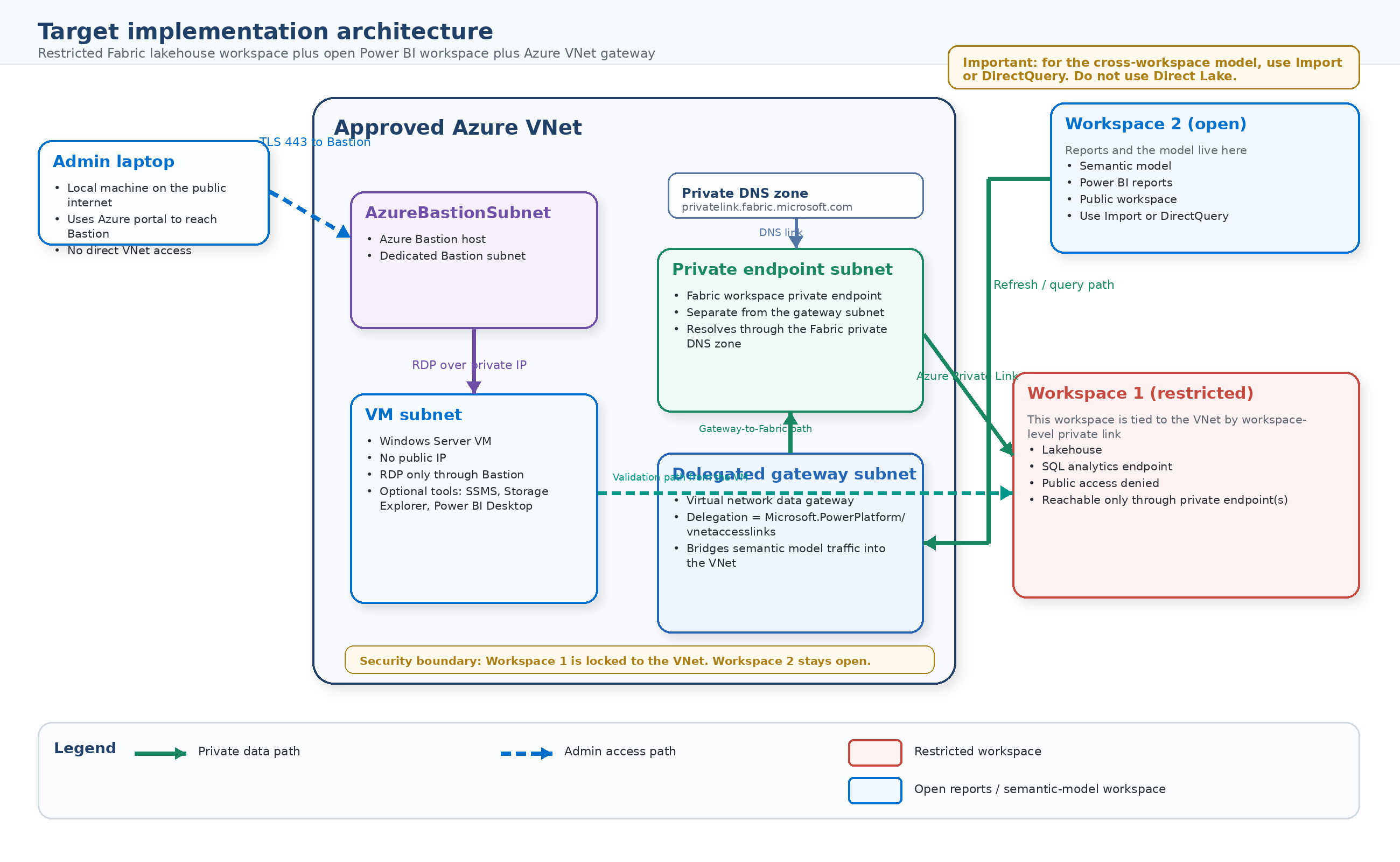
Figure 1. Restricted Fabric lakehouse workspace connected to an approved Azure VNet, with Workspace 2 remaining open and reaching back through a virtual network data gateway.
3. Prerequisites, access, and values to collect
3.1 Required roles and platform prerequisites
| Requirement | Needed for | Notes |
|---|---|---|
| Fabric administrator role | Enable the tenant networking setting | Required to enable Configure workspace-level inbound network rules. Changes can take up to about 15 minutes to take effect. |
| Workspace admin on both workspaces | Configure workspace settings and create items | You must be a workspace admin to configure Workspace 1 inbound networking and to manage the lakehouse after it is restricted. |
| Azure permissions to deploy network resources | Create VNet, private endpoint, VM, Bastion, DNS zone | Contributor or equivalent on the subscription/resource group is usually enough; some organizations split networking rights. |
| Fabric capacity assignment | Host the workspaces | The restricted workspace must be assigned to an F SKU capacity. The semantic model and gateway path require a Premium-capable capacity such as F or P. |
| One Azure subscription and region choice | Keep the deployment coherent | Use one resource group and one region for the Azure resources in this runbook unless your organization requires a more advanced topology. |
| Test identity with access to both workspaces | Validate portal and refresh behavior | Use the same admin identity during the initial build to reduce troubleshooting noise. |
3.2 Portal-ready values to collect before you begin
| Parameter | Recommended value / what to collect | Notes |
|---|---|---|
| Azure subscription | Your subscription | Hosts the VNet, VM, Bastion, private endpoint, and Fabric private link service. |
| Azure resource group | rg-fabric-private-01 |
Example name. |
| Azure region | Your chosen Azure region | Use the same region for VNet, VM, private endpoint, and Bastion. |
| Fabric capacity name / SKU | Your Fabric capacity | Restricted workspace must be on an F SKU. Keep Workspace 2 on a Premium-capable capacity. |
| Tenant ID | Your Entra tenant ID | Needed for the Fabric private link service ARM deployment. |
| Workspace 1 name | ws1-restricted-data |
Restricted data workspace. Create it empty. |
| Workspace 1 ID | GUID after /groups/ in the Fabric URL |
Capture this exactly. |
| Workspace 2 name | ws2-open-reporting |
Open reporting workspace. |
| Workspace 2 ID | GUID after /groups/ in the Fabric URL |
Capture this exactly. |
| VNet name | vnet-fabric-private-01 |
Example name. |
| VNet address space | 10.70.0.0/21 |
Recommended tight-fit address space for the subnet plan below. |
| VM subnet CIDR | 10.70.1.0/24 |
Hosts the Windows jump VM. |
| Private endpoint subnet CIDR | 10.70.2.0/27 |
Reserve enough IPs; keep separate from the gateway subnet. |
| Gateway subnet CIDR | 10.70.3.0/27 |
Dedicated subnet for the virtual network data gateway. |
| AzureBastionSubnet CIDR | 10.70.4.0/26 |
Must be named AzureBastionSubnet and be /26 or larger. |
| VM name / admin username | vm-fabric-admin / your admin username |
VM has no public IP. |
| Bastion name | bastion-fabric-private |
Example name. |
| Private endpoint name | pe-fabric-ws1 |
Example name. |
| Gateway name | gw-fabric-vnet |
Example name. |
| Private DNS zone | privatelink.fabric.microsoft.com |
Used for the Fabric workspace private endpoint. |
Naming tip
Choose simple names that make the topology obvious. A common pattern isws1-restricted-data,ws2-open-reporting,rg-fabric-private-01,vnet-fabric-private-01,pe-fabric-ws1,vm-fabric-admin, andgw-fabric-vnet.
3.3 Suggested subnet plan
| Subnet | CIDR | Purpose | Special configuration |
|---|---|---|---|
snet-vm |
10.70.1.0/24 |
Hosts the Windows jump VM | No public IP on VM |
snet-fabric-pe |
10.70.2.0/27 |
Hosts the Workspace 1 private endpoint | Keep separate from gateway subnet |
snet-vnet-data-gw |
10.70.3.0/27 |
Hosts the virtual network data gateway | Delegate to Microsoft.PowerPlatform/vnetaccesslinks |
AzureBastionSubnet |
10.70.4.0/26 |
Hosts Azure Bastion | Name must be exact; /26 or larger |
3.4 Identity values: how to verify them before you deploy
| Value | How to verify it |
|---|---|
| Tenant ID | Check it in Azure portal > Microsoft Entra ID > Overview / Properties. As a cross-check, in the Fabric portal open ? > About Power BI and compare the ctid value shown in the Tenant URL. |
| Workspace ID | Open the workspace in Fabric and copy the GUID after /groups/ from the browser URL. |
| Lakehouse ID | Later, when the lakehouse exists, copy the GUID after /lakehouses/ from the browser URL. |
4. Implementation phases
Use the phases below in order. The easiest operator model is:
- use your local workstation for Azure portal work,
- use Azure Bastion to reach the VM,
- from the VM browser, complete all Fabric work that touches Workspace 1 after the workspace is restricted.
Phase 1. Enable the Fabric tenant networking setting
- Sign in to the Fabric portal with a Fabric administrator account.
- Open Settings > Admin portal > Tenant settings.
- Search for Advanced networking settings.
- Open Configure workspace-level inbound network rules and set it to Enabled.
- Select Apply and wait up to 15 minutes for the change to propagate.
- Leave Configure workspace IP firewall rules enabled unless you also plan to use explicit public IP allow lists.
Operator note
This tenant setting is disabled by default. Without it, you can set up the Azure-side private link resources but you cannot finish the workspace public-access restriction from the Fabric side.
Checkpoint
| Check | Expected result |
|---|---|
| Tenant setting | Workspace admins can now see the Inbound networking option in workspace settings. |
| If you do not see it | Confirm the tenant setting was applied and that the signed-in user is a workspace admin. |
Phase 2. Create the two Fabric workspaces
- Create Workspace 1 for the restricted data plane. Assign it to the target Fabric capacity and leave it empty.
- Create Workspace 2 for the open report and semantic-model plane. Assign it to the same or another Premium-capable capacity that supports the semantic model and gateway workflow.
- Make sure your implementation identity is a workspace admin on both workspaces.
- Open each workspace in the browser and capture the workspace ID from the URL after
/groups/. Store those IDs in your values table.
Operator note
The restricted workspace must be created empty. This sequencing matters because an existing lakehouse creates a default semantic model, and that can interfere with public-access denial if you create it too early.
Checkpoint
| Check | Expected result |
|---|---|
| Workspace creation | Both workspaces exist and are assigned to capacity. |
| Important | Do not create the Workspace 1 lakehouse yet. |
Phase 3. Create the Azure resource group and virtual network
- In Azure portal, create or open the resource group that will hold the deployment. Recommended name:
rg-fabric-private-01. - Create the virtual network:
- Name:
vnet-fabric-private-01 - Address space:
10.70.0.0/21
- Name:
- Create these four subnets:
snet-vm=10.70.1.0/24snet-fabric-pe=10.70.2.0/27snet-vnet-data-gw=10.70.3.0/27AzureBastionSubnet=10.70.4.0/26
- Do not add a NAT gateway or public IP requirement to the VM subnet for this runbook.
- Save the VNet and confirm all subnets exist.
Operator note
If10.70.0.0/21overlaps an existing corporate network, keep the same subnet sizes and shift the block to another unused private range such as10.71.0.0/21.
Checkpoint
| Check | Expected result |
|---|---|
| VNet | The VNet and all four subnets exist. |
| Bastion subnet | AzureBastionSubnet exists and is /26 or larger. |
Phase 4. Register the Microsoft.Fabric resource provider if needed
- In Azure portal, go to Subscriptions > your subscription > Resource providers.
- Search for Microsoft.Fabric.
- If this is the first workspace-level private link deployment in the subscription, select Re-register.
- Wait until the provider registration state returns to Registered.
Operator note
Microsoft specifically calls out re-registration for subscriptions that contain the workspace private link resource and the private endpoint.
Checkpoint
| Check | Expected result |
|---|---|
| Provider state | Microsoft.Fabric shows Registered. |
| If deployment fails later | Come back here and confirm the provider really did register in the subscription you are using. |
Phase 5. Create the Fabric private link service resource in Azure
- In Azure portal, search for Deploy a custom template and choose Build your own template in the editor.
- Paste the ARM template shown in Appendix A.
- Set the resource name to something meaningful such as
pls-fabric-ws1. - Enter the Tenant ID and Workspace 1 ID.
- Before clicking Review + Create, verify the IDs one more time:
- Tenant ID matches Azure portal > Microsoft Entra ID.
- Workspace 1 ID matches the GUID after
/groups/in the Workspace 1 URL.
- Deploy the template to the same resource group. The resource is created as a hidden
Microsoft.Fabric/privateLinkServicesForFabricobject. - Verify the hidden resource exists:
- Open the resource group.
- Turn on Show hidden resources.
- Filter by resource type
Microsoft.Fabric/privateLinkServicesForFabric.
- Optional CLI verification:
az resource list \
  --resource-group rg-fabric-private-01 \
  --resource-type Microsoft.Fabric/privateLinkServicesForFabric \
  -o table
Operator note
This resource is the Azure-side private link service that represents Workspace 1.
Checkpoint
| Check | Expected result |
|---|---|
| Hidden resource | A hidden Microsoft.Fabric/privateLinkServicesForFabric resource exists in the resource group. |
| Identity accuracy | The deployment values match the intended tenant and Workspace 1 exactly. |
Phase 6. Create the Workspace 1 private endpoint and private DNS zone
- In Azure portal, open Private endpoints and select Create.
- On Basics, enter the name, region, and resource group values.
- On Resource, choose Connect to an Azure resource in my directory.
- Set Resource type to
Microsoft.Fabric/privateLinkServicesForFabric. - Select the Fabric private link service resource created for Workspace 1.
- Set Target subresource to
workspace. - On the Virtual Network page, choose:
- Virtual network:
vnet-fabric-private-01 - Subnet:
snet-fabric-pe
- Virtual network:
- On DNS, enable private DNS integration and choose Create new or select
privatelink.fabric.microsoft.com. - Create the private endpoint and wait for the provisioning state to complete.
Operator note
Microsoft recommends reserving at least 10 IP addresses per workspace-level private endpoint. Today the service creates five IP addresses per workspace-level private link, so do not undersize this subnet.
Checkpoint
| Check | Expected result |
|---|---|
| Private endpoint | Provisioning state is Succeeded and connection state is Approved. |
| Private DNS zone | privatelink.fabric.microsoft.com exists and is linked to the VNet. |
Phase 7. Create the Windows VM jump box
- Create a Windows Server VM in the
snet-vmsubnet. - Set Public inbound ports to None.
- Do not assign a public IP address to the VM.
- Use a local administrator username and a strong password that meets Azure complexity rules.
- After creation, record the VM name and private IP address.
Operator note
This VM is your admin jump box and private test client. After Workspace 1 is locked down, it becomes the cleanest place to browse the Fabric portal for that workspace.
Checkpoint
| Check | Expected result |
|---|---|
| VM networking | The VM exists in snet-vm and has only a private IP. |
| Optional tools | Later you can install SSMS, Azure Storage Explorer, or Power BI Desktop if you want richer validation tools on the VM. |
Phase 8. Deploy Azure Bastion and connect to the VM
- Open the VM in Azure portal and choose Connect > Bastion.
- If Bastion is not yet deployed, select Deploy Bastion.
- Accept or enter a Bastion name and use a Standard static public IP for the Bastion resource if prompted.
- Wait for the Bastion deployment to finish, then connect using the VM local administrator credentials.
- Once connected, open Microsoft Edge in the VM.
Operator note
The public surface is the Bastion host, not the VM. Bastion routes the RDP session to the VM private IP.
Checkpoint
| Check | Expected result |
|---|---|
| Bastion access | You can RDP to the VM through Bastion from your local workstation. |
| VM exposure | The VM itself still has no public IP. |
Phase 9. Validate private DNS resolution for Workspace 1 from inside the VNet
- From the VM, open Command Prompt.
- Construct the Workspace 1 API FQDN as follows:
- Start with the Workspace 1 ID.
- Remove the dashes.
- Take the first two characters of the dashless Workspace 1 ID.
- Build the host in this pattern:
{workspaceIdWithoutDashes}.z{firstTwoChars}.w.api.fabric.microsoft.com
- Example:
- Workspace ID:
cfafbeb1-8037-4d0c-896e-a46fb27ff227 - Without dashes:
cfafbeb180374d0c896ea46fb27ff227 - First two characters:
cf - FQDN:
cfafbeb180374d0c896ea46fb27ff227.zcf.w.api.fabric.microsoft.com
- Workspace ID:
- Run
nslookupagainst that FQDN. - Confirm the result is a private IP address, not a public IP.
- Then sign in to the Fabric portal in the VM browser and verify you can reach Workspace 1 while still inside the private path.
nslookup <workspaceIdWithoutDashes>.z<firstTwoChars>.w.api.fabric.microsoft.com
Operator note
Do this validation before you deny public access. It proves the private endpoint and DNS wiring are correct.
Checkpoint
| Check | Expected result |
|---|---|
| DNS | nslookup returns a private IP. |
| Portal access | The VM browser can sign in to Fabric and reach Workspace 1. |
Phase 10. Deny public access to Workspace 1
- From the Fabric portal, preferably in the VM browser, open Workspace 1.
- Go to Workspace settings > Inbound networking.
- Select Allow connections from selected networks and workspace level private links.
- Apply the change.
- Allow up to 30 minutes for the public-access restriction to take effect.
Operator note
From this point forward, treat the VM browser as the normal admin path for Workspace 1.
Expected off-network user experience
Users on the wrong network may still see the workspace shell or item list if they already have workspace permissions, but opening supported items such as a notebook can return 403 / API Access Denied. Treat workspace-level private link as an access-enforcement control, not a metadata-concealment feature.
Checkpoint
| Check | Expected result |
|---|---|
| Allowed path | Workspace 1 can still be reached from the VM browser. |
| Disallowed path | From the local workstation, Workspace 1 is no longer a valid direct management path. Some UI metadata may still appear, but item access should fail. |
Phase 11. Create the Workspace 1 lakehouse and a test table
- Still from the VM browser, open Workspace 1 in the Fabric portal.
- Create the lakehouse item in Workspace 1.
- Load at least one test table into the lakehouse so the semantic-model connection has something to read.
- If you want to mirror Microsoft's sample pattern, you can use Azure Storage Explorer to connect to the OneLake path and upload a small Delta table folder into the Tables area.
Operator note
The important part is not the ingestion method. The important part is that the table lives in Workspace 1 and can be reached through the lakehouse SQL analytics endpoint.
Checkpoint
| Check | Expected result |
|---|---|
| Lakehouse | Workspace 1 contains a lakehouse and at least one readable table. |
| SQL endpoint visibility | You can see the SQL analytics endpoint / SQL connection details from the restricted workspace while working inside the VM browser. |
Phase 12. Prepare the delegated subnet and create the virtual network data gateway
- In Azure portal, open the
snet-vnet-data-gwsubnet. - Set Subnet delegation to
Microsoft.PowerPlatform/vnetaccesslinks. - In the Fabric or Power BI portal, open Manage connections and gateways using the gear icon in the upper-right corner:
- Settings (gear) > Manage connections and gateways
- If you do not see it there, use the fallback path:
- Power Platform admin center > Manage > Data (preview)
- Create a new virtual network data gateway using the VNet and delegated subnet you created.
- Wait for the gateway to show a healthy state.
Operator note
The gateway must live in the same VNet pattern that can resolve and reach the restricted workspace.
Checkpoint
| Check | Expected result |
|---|---|
| Gateway subnet | The gateway subnet shows the Microsoft.PowerPlatform/vnetaccesslinks delegation. |
| Gateway object | The virtual network data gateway appears in Manage connections and gateways and shows a healthy state. |
Phase 13. Create the SQL connection on the gateway
- In Workspace 1, locate the item with the same name as the lakehouse and type SQL analytics endpoint.
- Open that SQL analytics endpoint item.
- Go to Settings > SQL endpoint.
- Copy the SQL connection string.
- From that connection string, copy the server host name. Use that value as the Server in the new SQL Server connection.
- Now open the lakehouse item itself in Workspace 1.
- Copy the GUID after
/lakehouses/from the browser URL. This is the Lakehouse ID. - Open Settings (gear) > Manage connections and gateways.
- Select New and create a new SQL Server connection on the virtual network data gateway you created in Phase 12.
- Fill in the connection fields exactly as follows:
| Connection field | What to enter |
|---|---|
| Gateway / cluster | Your virtual network data gateway |
| Data source type | SQL Server |
| Server | The server host from the lakehouse SQL connection string |
| Database | The Lakehouse ID GUID from the lakehouse URL |
| Authentication | OAuth2 / Organizational account |
| Signed-in account | The same Entra user that already has access to the lakehouse |
- Sign in with the same identity that can already open the restricted lakehouse and its SQL analytics endpoint.
- Save the connection.
Operator note
This gateway connection is the bridge that Workspace 2 will use. For this runbook, do not use the OneLake catalog path for the semantic model.
Checkpoint
| Check | Expected result |
|---|---|
| SQL connection | A SQL connection exists on the VNet gateway and shows a healthy status. |
| Important | Use the SQL analytics endpoint path. Do not use the OneLake catalog for this model. |
Phase 14. Create the semantic model and report in Workspace 2
- Open Workspace 2. You can do this from the VM browser or from your local workstation; using the VM during initial build avoids ambiguity.
- Create a new Semantic model.
- Choose Get data and select Azure SQL database so the model connects through the SQL analytics endpoint.
- Enter the same Server and Database values that worked for the SQL Server connection in Phase 13.
- Authenticate with Organizational account.
- Choose Import or DirectQuery according to your requirement.
- Select the tables to include and complete creation of the semantic model and starter report.
Operator note
At creation time the model might not fully connect until the gateway mapping is finalized. That is expected.
Checkpoint
| Check | Expected result |
|---|---|
| Semantic model | The semantic model exists in Workspace 2. |
| Important | Do not choose the OneLake catalog path because that produces Direct Lake, which is not supported here. |
Phase 15. Bind the semantic model to the gateway connection and test refresh
- Open the semantic model settings in Workspace 2.
- Turn on Gateway connections or Gateway and cloud connections, depending on the portal label you see.
- Select the SQL connection on the virtual network data gateway that points to Workspace 1.
- Save the setting and refresh the semantic model.
- Open the report and confirm visuals return data from the restricted lakehouse.
Operator note
If the portal mapping does not light up cleanly, use the documented Get Gateways and BindToGateway APIs shown in Appendix B as the fallback path.
Checkpoint
| Check | Expected result |
|---|---|
| Refresh | The semantic model refresh succeeds. |
| Reporting | Report visuals query data successfully through the gateway. |
| Connection path | Gateway settings show the VNet gateway as the active connection path. |
5. Validation checklist
| Test | Run from | Expected result | Done |
|---|---|---|---|
| Private DNS test | VM | nslookup for the Workspace 1 FQDN returns a private IP |
[ ] |
| Portal access to Workspace 1 | VM browser | Workspace 1 opens successfully after public access is denied | [ ] |
| Portal access block from local | Local workstation | Workspace 1 is no longer a valid direct public management path; item opens should fail | [ ] |
| Lakehouse table visibility | VM browser | At least one test table exists in the Workspace 1 lakehouse | [ ] |
| Gateway health | Fabric / Power BI portal | VNet gateway and SQL connection both show healthy | [ ] |
| Semantic model refresh | Workspace 2 | Refresh completes successfully | [ ] |
| Report query test | Workspace 2 report | Visuals render data from Workspace 1 | [ ] |
6. Common pitfalls and troubleshooting
| Symptom | Likely cause | What to do |
|---|---|---|
| Inbound networking option is missing in Workspace 1 settings | Tenant setting is still disabled, or the signed-in user is not a workspace admin | Recheck the Fabric admin setting and wait for propagation. Then confirm workspace admin rights. |
| The hidden private link service resource does not appear in the resource group | Hidden resources are not shown, or the template was deployed with the wrong tenant/workspace values | Turn on Show hidden resources, filter by Microsoft.Fabric/privateLinkServicesForFabric, and verify the deployment values. |
nslookup returns a public IP or fails |
Private endpoint or private DNS zone integration is wrong, or the FQDN format is wrong | Check the private endpoint, DNS zone link, and the workspace ID without dashes plus the correct zxy prefix. |
| You cannot deny public access on Workspace 1 | The workspace was not kept empty before restriction, or it contains unsupported items | Create a fresh empty workspace and repeat the sequence: private link first, deny public access second, lakehouse third. |
| You lose access to Workspace 1 from your local machine | This is expected after restriction | Use the VM browser over Azure Bastion as the management path. |
| You can still see the workspace or item list from the wrong network, but opening an item returns 403 | This is expected behavior for workspace-level private link | Treat the control as access enforcement, not metadata hiding. Validate that supported item opens are blocked. |
| You cannot find Manage connections and gateways | Looking in the workspace nav instead of the global settings area | Use Settings (gear) > Manage connections and gateways, or the Power Platform admin center fallback. |
| Gateway creation or use fails | Gateway subnet is not delegated, or the gateway is not using the intended VNet/subnet | Verify delegation to Microsoft.PowerPlatform/vnetaccesslinks and recreate the gateway if necessary. |
| SQL connection creation fails or authentication loops | Wrong server/database values or wrong signed-in account | Re-copy the Server from SQL analytics endpoint > Settings > SQL endpoint and the Database from the Lakehouse ID in the lakehouse URL. Sign in with the same account that already has access to the lakehouse. |
| Semantic model tries to create Direct Lake behavior | The model was created from OneLake catalog instead of Azure SQL database | Recreate the model using Azure SQL database and choose Import or DirectQuery. |
| Semantic model exists but refresh fails | Gateway connection is missing, unhealthy, or mapped to the wrong server/database | Check the SQL connection values, gateway health, and model-to-gateway mapping. |
Fast recovery rule
If Workspace 1 setup becomes messy, it is usually faster to delete the private-link resources and the empty restricted workspace and start over than to keep patching an out-of-sequence build.
7. Operational handoff notes
| Operational area | Handoff guidance |
|---|---|
| Admin path for Workspace 1 | Use the VM browser over Azure Bastion whenever you need to administer the restricted workspace from outside Azure networking. |
| Adding more restricted workspaces | Each restricted workspace needs its own workspace-level private link service and its own private endpoint. |
| Adding more report workspaces | They can remain open and reuse the same VNet gateway pattern, provided the connection and gateway design supports the sources you add. |
| Change control | Any change to DNS, private endpoints, gateway subnet delegation, or workspace inbound rules should be treated as a network change and validated with the checklist in Section 5. |
| Monitoring | Watch semantic model refresh history, gateway health, private endpoint connection state, and Bastion availability. |
Appendix A. ARM template for the Fabric private link service
Use this template with Azure portal > Deploy a custom template. Replace the placeholder values before deployment.
{
  "$schema": "http://schema.management.azure.com/schemas/2015-01-01/deploymentTemplate.json#",
  "contentVersion": "1.0.0.0",
  "parameters": {},
  "resources": [
    {
      "type": "Microsoft.Fabric/privateLinkServicesForFabric",
      "apiVersion": "2024-06-01",
      "name": "<resource-name>",
      "location": "global",
      "properties": {
        "tenantId": "<tenant-id>",
        "workspaceId": "<workspace-id>"
      }
    }
  ]
}
Appendix B. Useful command and API snippets
These are fallback tools for validation and troubleshooting. The main runbook uses the portal wherever possible.
B.1 Workspace FQDN pattern for API / private-resolution tests
{workspaceIdWithoutDashes}.z{firstTwoChars}.w.api.fabric.microsoft.com
Where:
workspaceIdWithoutDashes= Workspace ID with-removedfirstTwoChars= first two characters of the dashless Workspace ID
Example:
cfafbeb180374d0c896ea46fb27ff227.zcf.w.api.fabric.microsoft.com
B.2 Private DNS validation from the VM
nslookup <workspaceIdWithoutDashes>.z<firstTwoChars>.w.api.fabric.microsoft.com
B.3 Verify the hidden Fabric private link service resource
az resource list \
  --resource-group <resource-group-name> \
  --resource-type Microsoft.Fabric/privateLinkServicesForFabric \
  -o table
B.4 Get gateway instances
GET https://api.fabric.microsoft.com/v1/gateways
B.5 Workspace network communication policy API
PUT https://api.fabric.microsoft.com/v1/workspaces/{workspaceID}/networking/communicationPolicy
Content-Type: application/json

{
  "inbound": {
    "publicAccessRules": {
      "defaultAction": "Deny"
    }
  }
}
B.6 Notes about semantic-model binding
If the portal does not bind the semantic model cleanly to the VNet gateway connection, use the documented gateway binding APIs from Microsoft Fabric as the fallback path. Keep the same Server, Database, and OAuth2 identity values used in the gateway connection.
Appendix C. Official Microsoft documentation referenced for this runbook
- Enable workspace inbound access protection
- Set up and use workspace-level private links
- Supported scenarios and limitations for workspace-level private links
- About cross-workspace communication
- Access inbound restricted lakehouse data from Power BI by using a virtual network gateway
- Use virtual network data gateway and data sources in Power BI
- What is Azure Bastion?
- About Azure Bastion configuration settings
Reference URLs
 msmimart
https://learn.microsoft.com/en-us/fabric/security/security-workspace-enable-inbound-access-protectionhttps://learn.microsoft.com/en-us/fabric/security/security-workspace-level-private-links-set-uphttps://learn.microsoft.com/en-us/fabric/security/security-workspace-level-private-links-supporthttps://learn.microsoft.com/en-us/fabric/security/security-cross-workspace-communicationhttps://learn.microsoft.com/en-us/fabric/security/security-workspace-private-links-example-power-bi-virtual-networkhttps://learn.microsoft.com/en-us/data-integration/vnet/use-data-gateways-sources-power-bihttps://learn.microsoft.com/en-us/azure/bastion/bastion-overviewhttps://learn.microsoft.com/en-us/azure/bastion/configuration-settings